
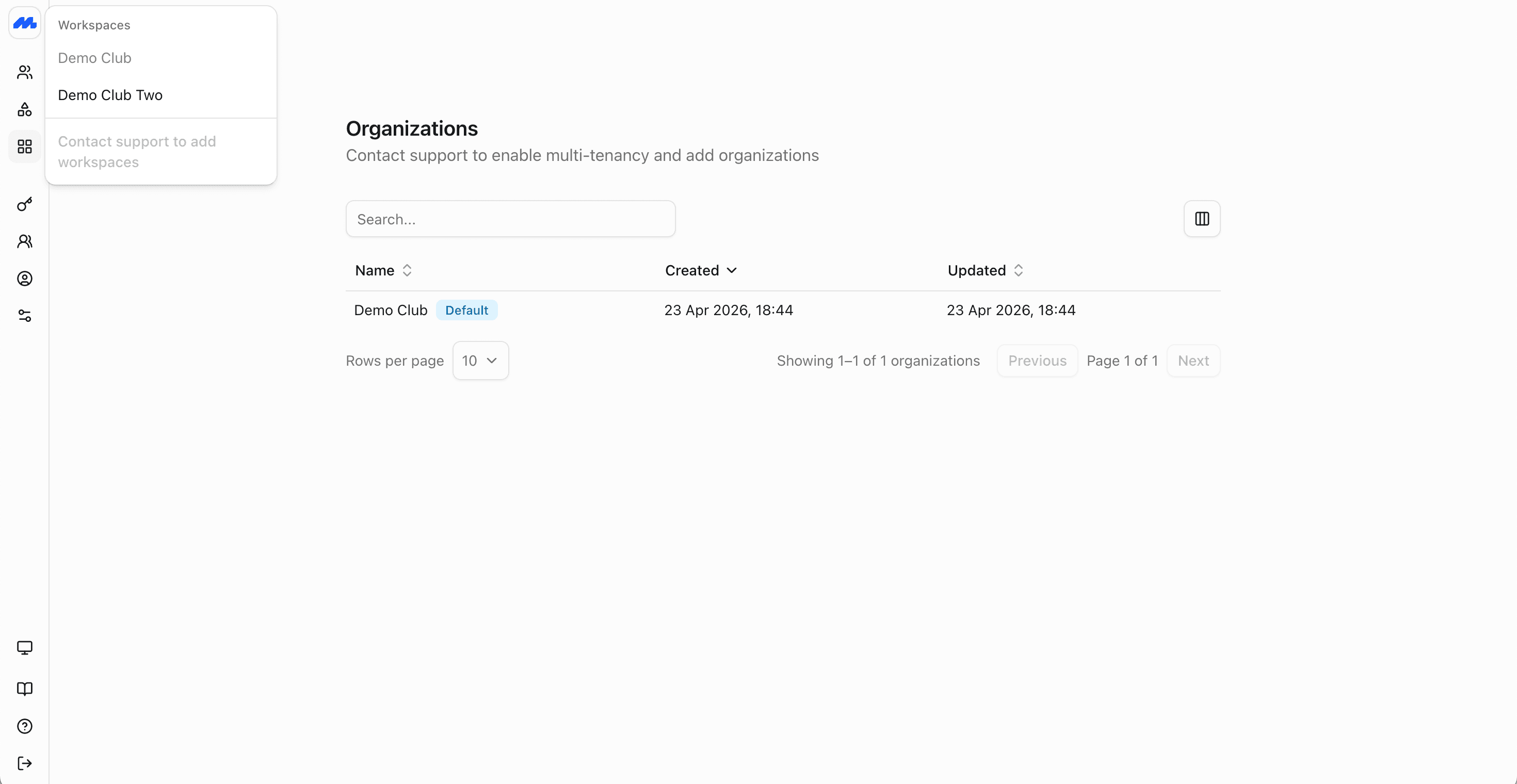
Organizations
How organizations, workspaces, and groups differ, and how to set up multi-tenancy for chapters, campuses, and multi-venue programs.
Overview
An organization is a separate tenancy in Members. Each organization has its own members, products, subscriptions, invoices, benefits, branding, and settings. Organizations cannot access each other's data.
Most customers run a single organization. Multi-tenancy is for setups that need several organizations under one roof, such as university clubs, association chapters, franchise locations, or campus societies. Each organization keeps its own catalog and admins. Parent-level staff can still get roll-up oversight when you need the full picture.
Running multiple organizations is an advanced feature. We suggest contacting support if you want to enable or plan multi-tenancy.
There is no limit on how many organizations you can create when multi-tenancy is enabled. Manage them in the admin dashboard. The same functionality is available on the Organizations API.
Organizations vs groups
Organizations and groups solve different problems. Mixing them up is the most common modelling mistake in multi-location or multi-chapter setups.
| Organization | Group | |
|---|---|---|
| Typical use | A chapter, campus club, franchise site, or separate venue | A family, company, team, committee, or mailing cohort |
| What it is | A separate tenancy with its own data and catalog | A label or cohort of members inside one organization |
| Has its own products and billing? | Yes | No |
| Has its own admins and branding? | Yes | No |
| Members belong to | That organization's database | Profiles that already exist in the organization |
Use an organization when the unit should sell its own products, hold its own invoices, and often have its own staff.
Use a group when people already sit in the same organization and you only need to filter, export, or manage them together. Families and corporate seats that share one plan are usually a group subscription, not a child organization.
Organizations vs workspaces
| Workspace | Organization | |
|---|---|---|
| Typical use | A university, governing body, association HQ, or brand that oversees several units | A chapter, club, or association within that workspace |
| What it is | The collection of organizations you operate together | One separate tenancy inside that collection |
| Contains | One or more organizations | Members, products, subscriptions, benefits, and settings |
| You create it when | You create an account | You set up that account's first organization, or add more for multi-tenancy |
| Staff see | The organizations they can access | Only that organization's data, unless they have parent-level access |
A workspace groups the organizations that belong together under one parent structure. An organization is one of those units, with its own members and catalog that other organizations cannot see.
If you only run one club or venue, you effectively have one workspace and one organization. The distinction matters once you add more organizations: staff stay in the same workspace, then switch into the organization they manage.
Admin levels
Staff access is scoped to organizations. Invite people with an Admin role only when they should use the admin dashboard. A normal Member invite only opens the member website and app.
Typical levels in a multi-organization setup:
| Level | What they can do |
|---|---|
| Organization admin | Manage one organization's members, products, subscriptions, billing, and settings |
| Parent / central admin | Oversee child organizations, with roll-up visibility across the structure where that is enabled |
| Member | Manage their own profile and purchases in the member website and app. Not staff access |
Keep day-to-day club or venue staff as organization admins of their own organization. Reserve parent-level access for people who need cross-organization reporting or policy oversight. See Inviting members for how admin invites work.
Accounts, organizations, and workspaces
An account is tied to a workspace, not to a single organization. The same login can reach every organization in that workspace the person is invited to.
For example, a university student can use one email (or student ID login) across all clubs in the university workspace. They do not need a separate login for each club. Each club still has its own organization data; the account is what stays shared.
Setting up multi-tenancy
Use multi-tenancy when each unit should run as its own organization.
Decide the parent and children
Map the real structure first: university and clubs, association and chapters, brand and franchise sites, or similar. The parent is the oversight layer. Each child is an organization with its own catalog.
Create an organization
Create an organization for a unit that needs its own members, products, and admins. Set name, country, and timezone, currency, or language where those apply. Add further organizations over time as you need them. You do not have to create every organization up front.
Invite admins
Invite organization admins into each organization they should run. Invite parent-level admins for people who need oversight across organizations.
Add members, products, and benefits
Set up members, products, benefits, and branding in each organization. Pricing and rules do not have to match across organizations.
Multi-tenancy fits universities, associations, franchises, and similar parent-and-child structures.
Multi-venue gyms and clubs
Not every second location needs its own organization. Choose based on how much the venues share members, pricing, and staff.
Separate organizations (little overlap)
Use one organization per venue (or per brand site) when:
- Each location has its own products, prices, or joining rules
- Staff should only see that location's members and invoices
- Members rarely belong to more than one location
- Franchise or chapter autonomy matters more than a single shared catalog
This is the multi-tenancy model above: independent organizations, optional central oversight.
One organization, benefits for access (shared members)
Use a single organization when:
- The same people use more than one venue
- Pricing and membership types are mostly shared
- Front-desk or admin staff work across locations
- You mainly need to control which facilities a plan unlocks
In that model, keep everyone in one member database. Model venue access as benefits on each product. Door systems and booking tools check entitlements rather than which organization the member sits in.
Example: Brooklyn and Manhattan clubs
Imagine one brand with two New York clubs, Brooklyn and Manhattan, in a single organization. Create two boolean benefits:
| Benefit | What it unlocks |
|---|---|
| Brooklyn access | Entry to the Brooklyn club |
| Manhattan access | Entry to the Manhattan club |
Then sell products that grant different combinations, at different prices:
| Product | Price (example) | Benefits granted | Who can enter |
|---|---|---|---|
| Brooklyn membership | Lower single-site rate | Brooklyn access | Brooklyn only |
| Manhattan membership | Lower single-site rate | Manhattan access | Manhattan only |
| All locations | Higher multi-site rate | Brooklyn access and Manhattan access | Both clubs |
A member on Brooklyn membership has the Brooklyn benefit, so check-in or door access succeeds at Brooklyn and fails at Manhattan. A Manhattan member is the reverse. An All locations member holds both benefits, so either club lets them in.
Staff still see one shared member list, one billing setup, and one admin team. The products and benefits are what vary by venue, not separate organizations.
| Situation | Recommended approach |
|---|---|
| Independent clubs or franchise sites with little shared membership | Separate organizations |
| One brand, shared members, different facility access by plan | One organization, venue access via benefits |
| Family or corporate seats at the same venue | Group subscriptions inside the organization |
| Teams or committees for filtering only | Groups inside the organization |
Next steps
- Create an account if you are still setting up the first organization in your workspace.
- Add members once the organization exists, including groups when you need cohorts inside it.
- Create products and benefits so each organization (or each venue access tier) sells the right offer.
- Invite admins with the correct organization scope before go-live.