
Managing Subscriptions
Find subscriptions, change plans, handle renewals, pauses, cancellations, and overdue invoices.
Overview
Once subscriptions are running, most day-to-day work is change management: plan switches, renewal checks, failed payments, pauses, cancellations, and lifecycle updates. Products stay relatively stable; subscriptions move.
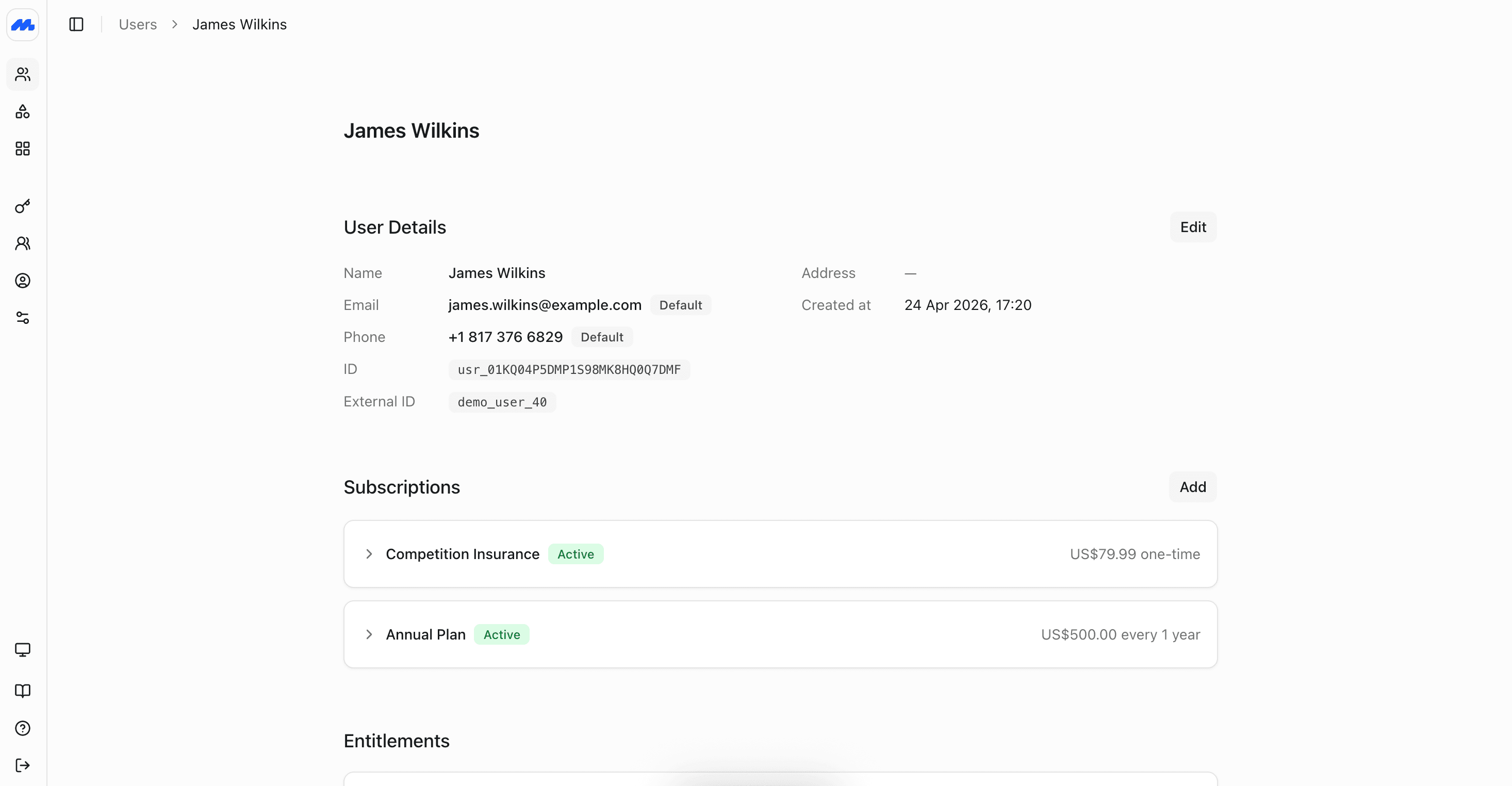
Find and filter subscriptions
In the admin dashboard, use the subscriptions list (or a member's profile) to find the right record. Common views:
- Active: Currently entitled and in good standing.
- Trialing: Still in a trial before the first paid invoice.
- Past due / overdue: Unpaid invoices that may affect access.
- Paused: Temporarily interrupted. See Pause a subscription.
- Cancelled: Ended plans kept for history. See Cancel a subscription.
The same records are available on the List Subscriptions endpoint through the API.
How subscription billing works
Recurring subscriptions renew automatically on the product's billing interval. On each renewal, Members creates an invoice for the subscription and applies any unallocated credit notes on the account first.
If the subscription has a payment method on file (Stripe, PayPal, or GoCardless), Members charges it for the remaining balance. While payment is processing there is a short grace period, suitable for methods like bank transfer and Direct Debit. If the charge fails or there is no payment method, the subscription becomes past due and benefits stay unavailable until all outstanding invoices are paid and the member is in good standing again.
Custom payment methods (for example cash, bank transfer, or a custom payment processor) are not charged by the card or Direct Debit processors. Instead, Members adds a payment to the invoice in pending status. An admin must confirm that payment was received — open the invoice and click Confirm Payment — before the subscription continues in good standing. For custom processors, listen to the payments.created webhook when an invoice is due, then use the API to mark the payment as captured once processing is complete.
Depending on your configuration, Members can also send reminder emails or SMS around the renewal. Where a notification is legally required, such as for Direct Debit, the payment processor sends its own reminder before the renewal date.
You can void an invoice to skip payment for a period, but pausing or cancelling is the best way to manage access when the member should stop being billed. For invoice statuses, payments, and credit notes in more detail, see Billing.
Overdue invoices
When a renewal payment fails or is not received, the subscription shows as past due. Benefits tied to that subscription are suspended until every outstanding invoice is paid and the member is in good standing again.
The member receives a notification in the member website and app so they can settle the balance themselves. Staff can also follow up from the admin dashboard, review payment attempts, and record an offline payment (cash, cheque, or bank transfer) when the member pays outside Stripe, PayPal, or GoCardless. See Overdue invoices and access.
Pause a subscription
Use a pause when the member should keep the same plan but stop for a while: seasonal absence, temporary leave, or a freeze window in your policy. Pauses stop future billing and change access according to the rules you choose, without deleting the subscription history. The member profile stays; invoices, payments, and past entitlements remain on file.
In the admin dashboard, open the subscription on the member's profile and click Pause or Cancel. The same flow is available on the API with Create a Subscription Interruption.
Choose Pause
Select Pause so the subscription can resume later on the same plan.
Select dates
Choose when the pause starts. You can backdate or postdate it. Optionally set an end date, or leave the pause open-ended and add an end date later.
Preview or override proration
Confirm whether to prorate the current period and the return period. Members automatically calculates amounts owed from the number of days paused in each billing interval, and whether each period's invoice was already paid. You are shown a pause preview with the new amounts per renewal period, and you can override those figures if needed.
You can also add additional fees to the pause, to cover admin costs.
Review and confirm
Check the review screen for start and end dates, benefit impact, and prorated amounts. When ready, confirm to create the pause.
If you specified an end date, the subscription resumes automatically on that date. Otherwise, edit the pause later to add an end date. If you made a mistake, you can revoke the pause; Members recalculates the amount owed based on the original discount for the paused period.
Cancel a subscription
Cancellation is a permanent end to a subscription. Once cancelled, it cannot be resumed — create a new subscription on the same member profile if they rejoin later.
In the admin dashboard, open the subscription on the member's profile and click Pause or Cancel. The same flow is available on the API with Create a Subscription Interruption.
Choose Cancel
Select Cancel. Add a cancellation reason if your process requires one.
Select the cancellation date
Choose when the subscription should end:
- A date in the future, such as the end of the current billing period or a minimum notice period. Pending cancellations can be edited or revoked.
- Immediately.
- A backdated date, so Members can determine any credit owed to the member.
Preview or override proration
Review any credit or balance from the cancellation date. Members calculates this from the unused portion of the paid period when you backdate or end mid-cycle. Override the amounts if your policy requires a different figure.
You can also add additional fees to the pause, to cover admin costs.
Review and confirm
Check the review screen for the cancellation date, access end, and any credit or balance. When ready, confirm to cancel the subscription.
Cancelling does not archive the member. If they should also leave day-to-day member lists, archive the profile separately after the cancellation is handled. Past invoices stay on the old subscription for history.
Upgrade or downgrade
Operationally, changing plan is a cancellation of the current subscription and the start of a new subscription on the destination product, aligned to the same change date. The member keeps one continuous profile; the old plan ends and the new plan begins together so there is no overlapping period of double entitlement.
Create the destination product before you need the first change. See Creating Products.
Use this cancel-and-start approach on the same member instead of creating a second overlapping subscription, unless they should genuinely hold both (for example a membership plus a credit pack).
Multiple subscriptions on one member
A member can hold several subscriptions at once. Active subscriptions on the same profile combine for entitlements, so stacked plans resolve to one set of benefits rather than conflicting access rules.
Use separate subscriptions when the products are genuinely separate purchases. Use a group subscription when several people share one plan.